May 3, 2026 · 11 min read · RemoveTheBackground Editorial Team
How to Remove White Background from Any Image Free (2026)
Expert guide: remove the white background from images, logos & signatures — free, no Photoshop needed. 5 methods compared. Get a transparent PNG in seconds.
By RemoveTheBackground.co Editorial Team | Updated May 2025 | 11-minute read
A white background seems neutral. Clean. Safe. But in the context of digital design and visual communication, a white background is one of the most restrictive elements an image can carry.
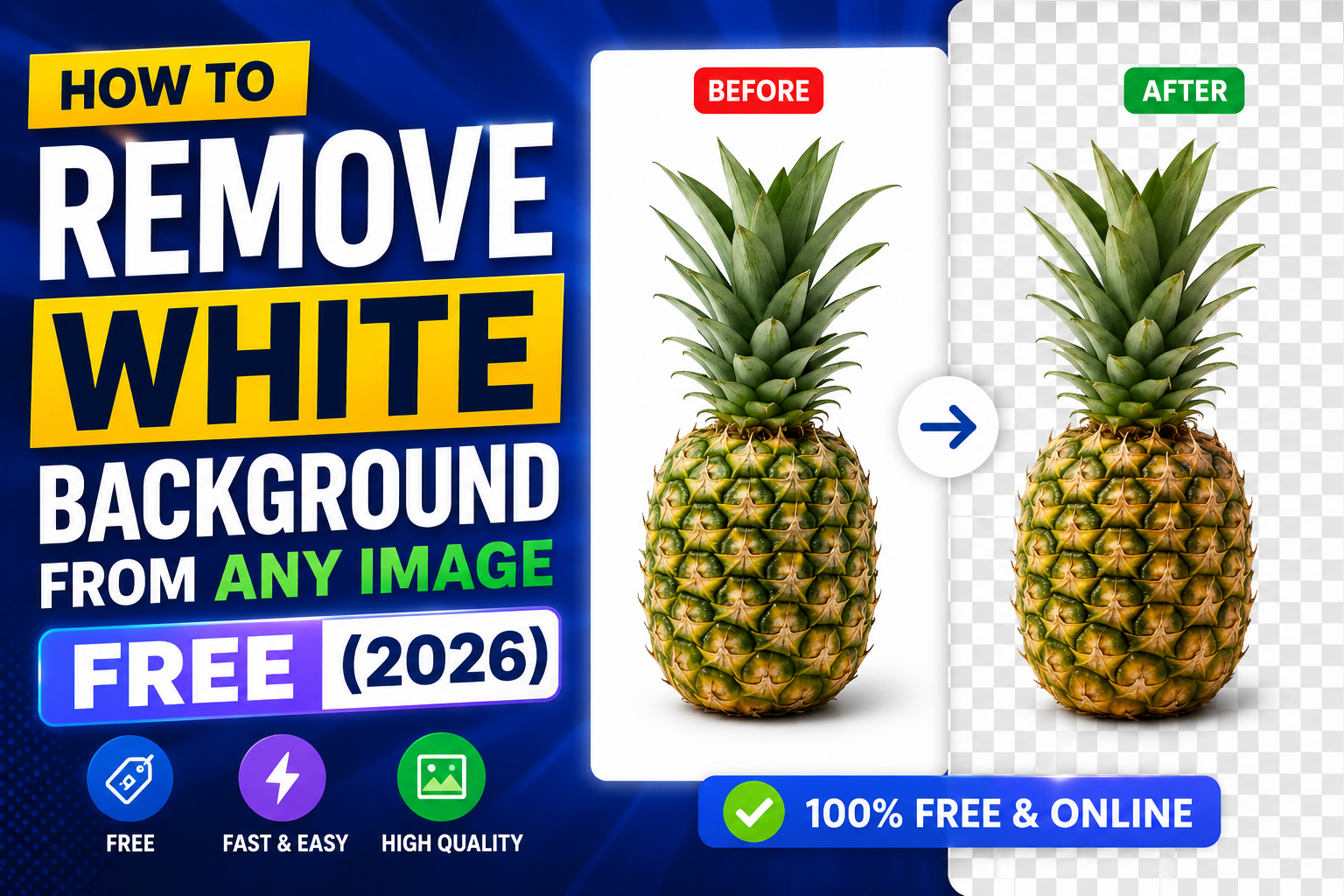
A logo with a white background box is unusable on a dark website header. A product image with a white background cannot be layered onto a lifestyle mockup. A signature scan with white surrounding it looks pasted, not integrated. In each case, what you actually need is not a white background — you need no background at all: a transparent PNG where the white has been completely removed.
This guide covers every method for removing white backgrounds in 2025, with honest expert analysis of which approach is right for which situation, and a clear step-by-step workflow that produces professional results in under 60 seconds — at no cost.
Why White Backgrounds Specifically Present Unique Challenges
White background removal seems like it should be the simplest case for AI — it is the highest-contrast scenario imaginable. And for many images, it is straightforward. But several categories of image make white background removal surprisingly difficult.
1. Subjects That Contain White
If your logo has white text, white shapes, or white elements as part of its intentional design, a tool set to "remove white background" faces a dilemma: it cannot distinguish between the white you want to remove and the white you want to keep. This is the most common failure mode for white background removal.
2. Near-White Subjects Against White Backgrounds
A white product (a white mug, a white shirt, a white box) photographed against a white background gives the AI almost no contrast signal to work with. The edges between subject and background are defined more by subtle shadow gradients than color difference.
3. Soft Shadows on White
When a product or subject casts a soft drop shadow on a white surface, the shadow area technically belongs to the background but graduates from white through grey. Should the AI include the shadow in the subject mask or remove it? Different use cases demand different answers.
4. Scanned Documents and Signatures
Scanned images on paper are rarely pure white in their background — scanner noise, paper texture, and uneven illumination produce background pixels ranging from pure white through off-white, cream, and light grey.
Understanding these challenges is what separates a good result from a failed one before you start.
The 5 Methods for Removing a White Background
Method 1: AI Background Removal (Recommended for Most Use Cases)
Best for: Logos, product photos, portraits, most standard images. Time: Under 30 seconds. Cost: Free at RemoveTheBackground.co. Account: No.
Modern AI segmentation models approach white background removal differently from traditional methods — rather than selecting by color, they identify the foreground subject and create a mask around it. This approach is superior because it is not confused by white elements within the subject.
Step-by-step:
- Go to RemoveTheBackground.co in your browser
- Upload your image (JPG, PNG, or WEBP)
- The AI processes your image (3–8 seconds)
- Review the output — the white background is removed and replaced with transparency
- Download your transparent PNG
Method 2: Canva Background Remover (For Canva Pro Users)
Best for: Canva Pro users. Cost: Requires Canva Pro ($14.99/month).
- Upload your image to Canva
- Select the image in the editor
- Click "Edit Image" → "Background Remover"
- Refine using Canva's eraser/restore tools
- Download as PNG
Method 3: Photoshop — Select by Color
Best for: Images where the subject contains white elements that must be preserved. Cost: Adobe Creative Cloud (~$20–55/month).
- Open your image in Photoshop
- Go to Select → Color Range
- Use the eyedropper to sample the background white
- Adjust "Fuzziness" to refine the selection
- Click OK to create a selection of all white areas
- Use "Select and Mask" to refine edges
- Delete the selected area or add a Layer Mask
- Export as PNG
Method 4: GIMP — Free Photoshop Alternative
Best for: Manual control without Adobe's subscription. Cost: Free.
- Download and install GIMP (gimp.org)
- Open your image
- Select the Fuzzy Select tool
- Click on the white background area
- Hold Shift and click any remaining white areas
- Press Delete
- Export as PNG
Method 5: PowerPoint / Google Slides
Best for: Quick removal inside a presentation.
In PowerPoint: Insert image → Picture Format → Remove Background → refine with Mark Areas → Save as Picture.
Method Comparison: When to Use Which Approach
| Situation | Best Method | Why |
|---|---|---|
| Logo on solid white | AI (RemoveTheBackground.co) | Fastest, free, excellent quality |
| Logo with white interior elements | Photoshop or GIMP | Manual control over which white is removed |
| Product on white background | AI (RemoveTheBackground.co) | Best edge quality, free, no account |
| Signature on white paper | AI (RemoveTheBackground.co) | Fast, clean result |
| Portrait/person on white | AI (RemoveTheBackground.co) | Hair edge quality requires AI |
| Inside Canva workflow | Canva Background Remover | Native integration |
| Inside a presentation | PowerPoint/Google Slides | Quick fix without leaving the app |
| High-precision print work | Photoshop | Maximum manual control |
Solving the 3 Most Common White Background Removal Problems
Problem 1: White areas inside the subject are being removed
Solution: Use Photoshop's Color Range with manual exclusion, or GIMP's fuzzy select with careful selection. Prevention: Save logos as SVG — vector formats support native transparency.
Problem 2: Partial white background remains around edges
Cause: Edge pixels contain a gradient between the subject color and white background. Solution: Photoshop → Layer → Matting → Defringe (1–2 px). In GIMP use Colors → Color to Alpha targeting near-white values.
Problem 3: Soft product shadows are being removed
Solution: Either keep them via manual selection in Photoshop, or accept the AI's behavior and add a clean digital shadow in your design app — most marketplaces (Amazon, Shopify) prefer shadow-free product images.
After Removal: Using Your Transparent PNG Correctly
- Canva: Upload via Uploads tab — places cleanly on any background.
- PowerPoint: Insert → Pictures — layers over any slide background.
- Email signatures: Gmail, Outlook display transparent PNGs correctly.
- Websites (HTML/CSS): PNG transparency natively supported in all browsers.
- Shopify: Upload transparent PNG for swatches and overlays.
- Print (InDesign, Illustrator): PNG works for screen; for offset print use EPS/PDF with clipping path.
A Note on PNG vs. Other Transparent Formats
- WebP: Smaller than PNG, supports transparency, increasingly used on websites.
- SVG: Vector format — superior to PNG for logos, scales infinitely, never needs background removal.
- GIF: Only 1-bit transparency (no smooth edges) — not recommended.
For all standard digital use cases, transparent PNG is the correct choice.
Frequently Asked Questions
How do I remove the white background from an image for free without Photoshop?
Visit RemoveTheBackground.co, upload your image, and download the transparent PNG result. No Photoshop, no account, no cost.
Will removing the white background affect image quality?
No. Only the background pixels are made transparent. The subject's pixel data is unchanged.
What if my logo has white text I don't want removed?
AI tools identify the foreground subject as a whole, so internal white design elements are typically preserved. If some interior whites are removed, fall back to Photoshop's Color Range with manual exclusion.
Can I remove a white background from a JPG file?
Yes. JPG files are accepted; the output is saved as PNG (since JPG does not support transparency).
How do I make a white background transparent in Photoshop?
Use Select → Color Range, choose the white background, then delete the selection. Export as PNG.
Can I batch process multiple images?
Photoshop's Actions + Batch Processing automates this. For free online options, processing images individually on RemoveTheBackground.co is fast for small batches.
Does removing the white background work on scanned signatures?
Yes — works best on high-contrast black ink signatures.
What is the difference between "transparent background" and "white background"?
A white background is a filled white layer. A transparent background is the absence of any background — represented by a checkered pattern in image editors.
Summary
- AI is the fastest, most accessible method for the majority of images
- Photoshop gives maximum manual control for complex cases
- GIMP provides free manual control without an Adobe subscription
- All transparent image output should be saved as PNG
- RemoveTheBackground.co provides free, instant, account-free results
Start with RemoveTheBackground.co — it handles the vast majority of white background removal tasks in under 30 seconds. Fall back to manual methods only when the specific structure of your image requires it.
Written by the RemoveTheBackground.co editorial team | Image processing specialists | Updated May 2025
Try it now — free, no signup
Upload an image and get a transparent PNG in seconds.
Open the background removerKeep reading
How to Remove Background from Image Free — Ultimate 2025 Guide
The complete expert guide to removing backgrounds from images for free in 2025. No Photoshop, no signup, no cost. AI tools, pro tips, and step-by-step walkthroughs.
Best AI Background Remover in 2026 — Expert Tested & Ranked
Expert-tested ranking of the best AI background removers in 2026. Honest comparison of quality, speed, cost, and limitations. One is completely free — no signup needed.