May 8, 2025 · 14 min read · RemoveTheBackground Editorial Team
How to Remove White Background from a Logo Free (2025)
Learn how to remove the white background from any logo free in 2025 — no Photoshop, no signup. Get a clean transparent PNG logo in seconds. Expert step-by-step guide.
By the RemoveTheBackground.co Editorial Team | Updated May 2025 | 14-minute read
Author note: This guide is written by image processing specialists with over a decade of experience in digital asset production, brand identity workflows, and AI-powered editing tools. Every method described has been tested hands-on using real logo files across multiple formats.
You just received your new logo from a designer. Or you found the only version of your company logo saved on an old laptop. Or you are building a website and trying to place your brand mark on a dark-colored header.
There is one problem: the logo has a white background.
On a white page, this is invisible. But the moment you place that logo anywhere else — a colored slide, a social media banner, a branded T-shirt mockup, a dark website header, a product photo overlay — you get a white box around your logo that immediately screams "amateur."
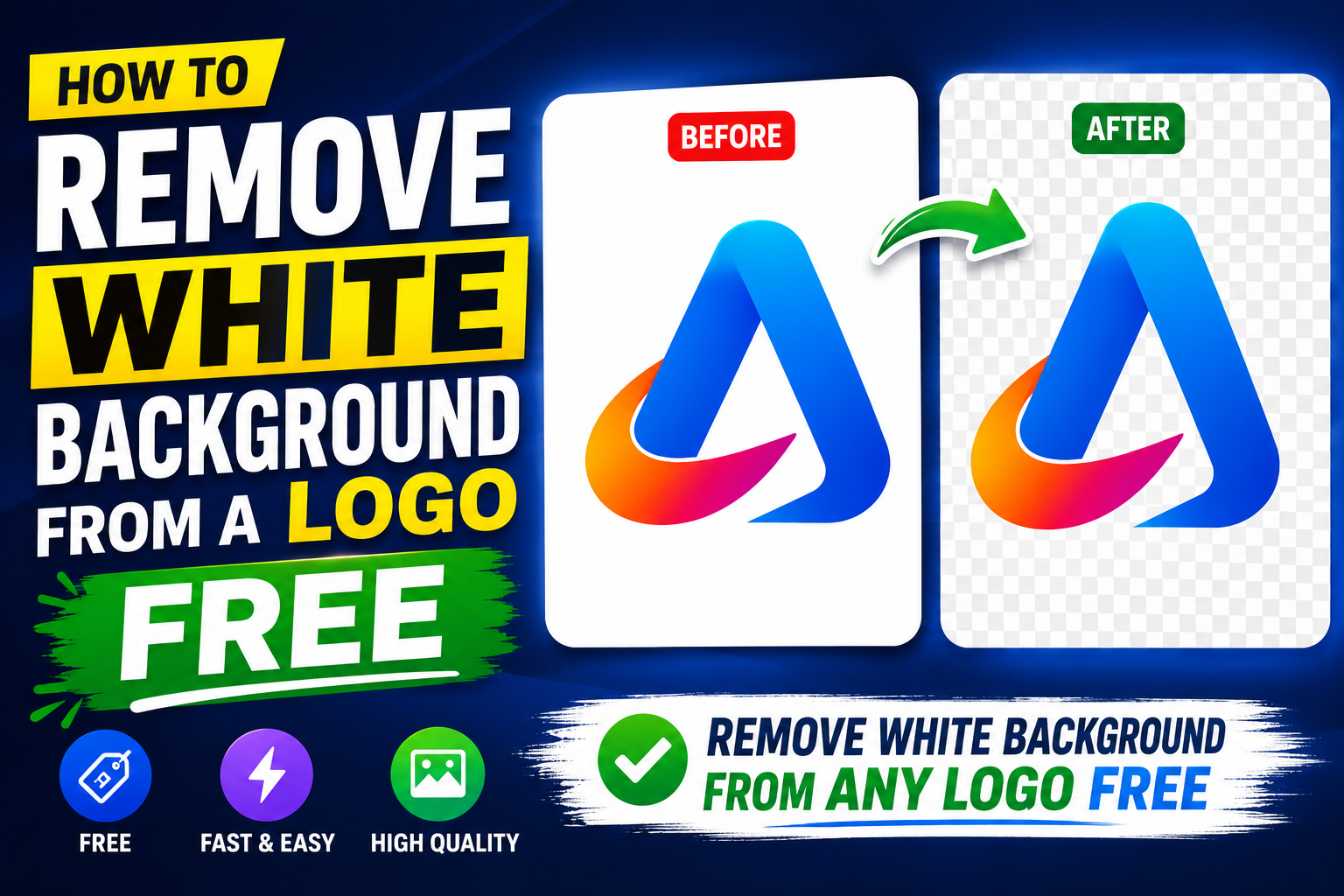
The solution is a transparent background logo — a PNG file where the white has been completely removed and replaced with true transparency. This guide shows you every method for achieving that result in 2025, from the fastest free tool that takes under 10 seconds, to manual techniques for complex cases where AI alone isn't enough.
By the end of this guide, you will know exactly which method to use for your specific logo, how to avoid the most common mistakes that ruin logo transparency, and how to use your transparent logo correctly across every platform and medium.
Why Your Logo MUST Have a Transparent Background (And Why Most Logos Don't)
The White Background Problem Explained
When a graphic designer creates a logo in Adobe Illustrator or a similar vector tool, it exists in a format with no background at all — an SVG or AI file where the canvas is transparent by nature. The logo is just the shapes, colors, and typography — nothing behind them.
The white background enters the picture at the export or delivery stage. If a designer exports the logo as a JPG, white background is added automatically because JPG does not support transparency. If the designer exports as PNG but forgets to turn off the canvas fill, or if the file passes through any tool that flattens transparency, the white background gets baked in.
Most non-designers receive their logo as a JPG or a "flattened" PNG, neither of which carries true transparency. This is the source of the white box problem — and it affects the vast majority of small business logos in circulation.
Where a White Background Logo Fails
- Dark or colored website headers — A white rectangle housing your logo on a navy or black header looks like a placeholder.
- Social media profile images and cover photos — Creates an obvious box against any non-white backdrop.
- Email signatures — Visible white square in dark mode and Outlook previews.
- PowerPoint and Google Slides presentations — Kills visual cohesion on branded slides.
- Branded merchandise mockups — Makes products look like they have a sticker rather than a print.
- Overlay on photography — Transparent logos look integrated; white-background logos look pasted.
- Co-branding and partnership materials — White boxes create visual inconsistency.
Understanding Logo File Formats: The Foundation of Transparency
JPG / JPEG — Does NOT Support Transparency
JPG is a lossy compression format with no concept of transparency. Any transparent area becomes white. The only option is to remove the white background and save the result as a PNG.
PNG — Supports Transparency (With Caveats)
PNG supports an alpha channel defining how transparent each pixel is. However, a PNG can be saved with or without an alpha channel — if your PNG has a white background baked in, it lacks alpha or was saved with a white-filled canvas.
SVG — The Gold Standard for Logos
SVG is an XML-based vector format that scales infinitely without quality loss and natively supports transparency. If you have the original SVG, use it — no background removal needed.
GIF — Limited Transparency, Not Recommended
GIF supports only binary transparency, causing jagged edges on smooth curves and anti-aliased text.
WebP — Modern Format, Growing Support
WebP supports transparency and compresses 30–50% better than PNG, but support in design software isn't universal.
Key takeaway: To give your logo a transparent background, you need to end up with a PNG file with an alpha channel, or an SVG file.
Method 1: AI Background Removal — The Fastest Free Method (Recommended)
Why AI Works Better Than Color-Selection for Logos
Simple color-selection fails when a logo contains white as part of its design — white text, white shapes, white highlights. Modern AI background removal solves this differently: instead of selecting by color, the AI identifies the foreground subject (your logo as a whole) and creates a mask around it. White elements within the logo design are typically preserved correctly.
Step-by-Step: Remove Logo White Background with RemoveTheBackground.co
What you need: Your logo file (JPG or PNG) | Time: Under 30 seconds | Cost: Free | Account: Not required
**Step 1: Open RemoveTheBackground.co** in any web browser. The tool loads immediately — no sign-in, no popup, no account creation.
Step 2: Upload Your Logo. Click the upload area or drag your file. Accepted formats: JPG, JPEG, PNG, WEBP. Upload the highest-resolution version you have.
Step 3: Wait for AI Processing. The AI analyzes your logo, identifies the foreground, and removes background pixels in 3–8 seconds.
Step 4: Review the Result. The transparent PNG preview appears with a checkered pattern. Zoom in to examine the outer boundary, white interior elements, and fine details.
Step 5: Download Your Transparent PNG. Your logo is saved as a full-resolution transparent PNG, ready to use anywhere.
This method is the right choice for logos on solid white backgrounds, off-white backgrounds, or any case where you need a result immediately with no software or account.
Method 2: Photoshop — For Logos With White Interior Design Elements
When AI Is Not Enough
If your logo uses white as part of its design — white text reversed out of a colored shape, white icons on a colored background — Photoshop's manual selection workflow gives you precise control.
Method 2A: Magic Eraser Tool (Quickest Manual Method)
- Open your logo (File → Open).
- Double-click the Background layer to convert it.
- Select the Magic Eraser Tool.
- Set Tolerance to 25–35, check Anti-alias and Contiguous.
- Click once on the white background.
- Export As → PNG with Transparency checked.
Tolerance explained: Lower (15–20) = pure white only. Higher (35–50) = broader range including off-white.
Method 2B: Select by Color Range (Most Precise Method)
- Open and convert the layer.
- Select → Color Range.
- Choose "Sampled Colors" and click the white background.
- Adjust Fuzziness (start at 40).
- Use "Add to Sample" to capture remaining background areas.
- OK → Delete → Deselect.
- Export As → PNG.
Protecting interior white elements: Use the Lasso Tool to draw around white design elements before deleting, then Alt-click to subtract them from the selection.
Method 3: GIMP — Free Desktop Alternative to Photoshop
GIMP is a free, open-source image editor available at gimp.org.
- Open your logo (File → Open).
- Right-click the layer → "Add Alpha Channel".
- Select the Fuzzy Select Tool (magic wand).
- Set Threshold to 30–50.
- Click on the white background.
- Shift-click any remaining white areas.
- Press Delete.
- File → Export As → .png → Export.
GIMP Limitation: Edge refinement is less sophisticated than Photoshop. Apply Filters → Enhance → Unsharp Mask sparingly to crisp up edges.
Method 4: Canva (For Canva Pro Users)
If you have a Canva Pro subscription:
- Upload your logo via the Uploads tab.
- Click the image → "Edit image".
- Select "Background Remover".
- Use Erase and Restore brushes to refine.
- Download as PNG with "Transparent background" checked.
Important: Background remover is a Canva Pro-only feature. If you don't have Pro, use RemoveTheBackground.co instead.
Method 5: Inkscape — For SVG Logos With Embedded Raster Backgrounds
For SVG files containing embedded raster images:
- Open the SVG in Inkscape.
- Select the embedded raster image.
- Check the XML editor for baked-in white background.
- Export the embedded image, remove the background using Method 1 or 2, re-import as transparent PNG, and re-embed.
For true SVG vector logos: simply select and delete the background rectangle in the layers panel.
The 5 Most Common Mistakes When Removing Logo White Backgrounds
Mistake 1: Saving the Result as JPG
JPG cannot store transparency and re-adds white. Fix: Always select PNG in export dialogs.
Mistake 2: Using a Low-Resolution Source File
Small files (less than 500px wide) limit edge quality. Fix: Always work from the highest-resolution version available.
Mistake 3: Leaving a White Halo (Fringing)
A ring of near-white pixels around edges from anti-aliasing.
How to identify it: Place your transparent logo on a dark background.
How to fix:
- Photoshop: Layer → Matting → Defringe (1–2 pixels).
- GIMP: Colors → Color to Alpha targeting near-white values.
- Canva: Use the manual erase brush with a soft edge.
Prevention: RemoveTheBackground.co handles most fringing automatically.
Mistake 4: Removing White That Belongs to the Logo
Fix: Use AI-based removal (subject detection) rather than color selection. For stubborn cases, use Photoshop's Color Range with manual exclusion via Lasso.
Mistake 5: Not Verifying the Transparency on Multiple Backgrounds
Fix: After downloading, preview your PNG on white, dark (black/navy), and a mid-tone (grey/brand color).
Where to Use Your Transparent Background Logo: Platform-by-Platform Guide
Website (HTML/CSS)
`<img src="logo-transparent.png" alt="Your Brand Logo">` — fully supported by all modern browsers. Provide light/dark variants via CSS media queries for theme support.
Canva
Upload to the Uploads panel. The transparent PNG layers seamlessly on any background.
PowerPoint / Google Slides
Insert → Pictures / Image → Upload. Transparency renders correctly in modern versions.
Gmail Email Signature
Insert via the image button in Settings → Signature. Test in both Gmail and Outlook for compatibility.
Shopify Header
Online Store → Themes → Customize → Header → Logo. Transparent PNG renders cleanly against your theme.
Etsy
Shop icon displays on white (transparency not critical). Use transparent PNG for the banner section.
Amazon Brand Registry / Storefront
Upload via brand assets in Seller Central — transparent PNG supports overlays.
Figma
Drag and drop the PNG directly. Upload to your team library for consistent brand assets.
LinkedIn Company Page
Logo displays on white. Use transparent PNG for cover image overlays.
Printed Materials
Transparent PNG works for digital design tools. For offset print, ask your printer about EPS with clipping path or PDF.
Expert Tip: Should You Use PNG Transparent or SVG?
| Feature | Transparent PNG | SVG |
|---|---|---|
| Scalability | Fixed resolution | Infinite (vector) |
| File size | Larger | Much smaller |
| Sharpness at any size | Limited by resolution | Always perfect |
| Transparency support | Yes | Yes (native) |
| Background removal needed | Sometimes | Never |
| Browser support | Universal | Modern browsers |
| Email client support | Good | Poor |
| Print compatibility | Good | Excellent |
Use SVG for: websites, apps, digital brand assets where you control display.
Use Transparent PNG for: email signatures, social media, PowerPoint, e-commerce, any context where SVG isn't accepted.
Frequently Asked Questions
How do I remove the white background from a logo for free without Photoshop?
Go to RemoveTheBackground.co, upload your logo (JPG or PNG), and download the transparent PNG result. No Photoshop, no account, completely free.
Why does my logo still show a white box after I "removed" the background?
You likely saved the result as JPG instead of PNG. JPG doesn't support transparency and fills transparent areas with white. Always save as PNG.
Will the AI remove white elements that are part of my logo design?
Modern AI background removers identify the foreground subject (your logo as a whole), not white pixels. Interior white design elements are typically preserved.
What is the best free tool to remove a white background from a logo?
RemoveTheBackground.co — no account, full-resolution PNG downloads, processes logos in under 10 seconds.
Can I remove the white background from a logo on my phone?
Yes. RemoveTheBackground.co works in mobile browsers on iPhone and Android. No app required.
Does removing the white background affect the logo's print quality?
No. Only background pixels become transparent — the logo's pixel data is unchanged. Output matches input resolution.
I only have a JPG version of my logo. Can I still get a transparent background?
Yes. Upload the JPG to RemoveTheBackground.co. It removes the white background and delivers a transparent PNG.
My logo is on a colored background, not white. Does this method still work?
Yes. AI background removal works on any background color, not just white.
How do I know if my PNG logo already has a transparent background?
Open it in a browser. A checkered grey-and-white pattern means transparency. Solid white or color means no transparency.
Can I use my transparent logo commercially after downloading?
Yes. The transparent PNG from RemoveTheBackground.co is yours to use freely for any commercial purpose.
Quick Reference: Which Method Should You Use?
| Your Situation | Best Method | Time Needed |
|---|---|---|
| Logo on solid white, no white in design | RemoveTheBackground.co | ~10 seconds |
| Logo on white, has white design elements | RemoveTheBackground.co (verify) | ~15 seconds |
| Logo with complex interior white | Photoshop Color Range | 5–10 min |
| No Photoshop, need manual control | GIMP Fuzzy Select | 10–20 min |
| Already in Canva Pro | Canva Background Remover | ~1 min |
| Have SVG file from designer | Use SVG directly | 0 seconds |
| Logo on colored background | RemoveTheBackground.co | ~10 seconds |
| Multiple logos in bulk | RemoveTheBackground.co (each) | ~10 sec each |
Conclusion
A logo with a white background is a liability for any brand operating across multiple digital and printed surfaces. The solution — a transparent background PNG — takes less than 30 seconds with the right tool, costs nothing, and immediately elevates the professional appearance of everything your logo appears on.
For most logos, RemoveTheBackground.co handles white background removal accurately, instantly, and free — no account, no watermark, no resolution limit. For edge cases with white design elements, Photoshop's Color Range method gives you the precision needed.
Start with the AI tool. It handles more than 90% of logo background removal cases perfectly. Save manual methods for the exceptions.
Your transparent PNG logo is 30 seconds away — remove the white background now.
Written by the RemoveTheBackground.co Editorial Team | Digital asset specialists | Reviewed and updated May 2025
Try it now — free, no signup
Upload an image and get a transparent PNG in seconds.
Open the background removerKeep reading
How to Remove Background from Image Free — Ultimate 2025 Guide
The complete expert guide to removing backgrounds from images for free in 2025. No Photoshop, no signup, no cost. AI tools, pro tips, and step-by-step walkthroughs.
Best AI Background Remover in 2026 — Expert Tested & Ranked
Expert-tested ranking of the best AI background removers in 2026. Honest comparison of quality, speed, cost, and limitations. One is completely free — no signup needed.